Posts

Showing posts with the label PowerShell

WSP not deployed in all SharePoint servers in the farm

Image
If you want to deploy wsp file on the SharePoint farm ... and the installation failed on some of the farm servers -  then the solution is the timejob SharePoint deploy Run this code at SharePoint PowerShell $farm  = Get-SPFarm $disabledTimers = $farm.TimerService.Instances | where {$_.Status -ne "Online"} if ($disabledTimers -ne $null) {     foreach ($timer in $disabledTimers)     {         Write-Host "Timer service instance on server " $timer.Server.Name " is not Online. Current status:" $timer.Status         Write-Host "Attempting to set the status of the service instance to online"         $timer.Status = [Microsoft.SharePoint.Administration.SPObjectStatus]::Online         $timer.Update()     } } else {     Write-Host "All Timer Service Instances in the farm are online! No problems found" } PowerShell timer job Before reinstalling recycle time Job on each ...

Converting SharePoint site from Version 2013 to 2016

Image
In this time Microsoft did a good job with Migration SharePoint 2013 to SharePoint 2016, and within a few hours it is possible to upgrade the site from 2013 to 2016 Even the code in Visual Studio was easy to upgrade  fron VS 2013 to VS 2015 update 3 with Office package I did this steps  Save wsp website (version 2013) Copy (backup restore) the DataBase from SQL 2012 DB 2016, and to ensure that it has sp admin privileges DB_Owner to the new DB In Central Adminstration -> Manage web applications a. Creating a Web Application with DB temporary b. Create a Site Collection c. Setting up the site in the hosts found in the C:\Windows\System32\drivers\etc\ with a local IP  Add the wsp site (Old from 2013) a. In powerShell -> Add-SPSolution -LiteralPath PATH b. Installing the solotion site (or in powerShell -> Install-SPSolution or in Central Adminstration -> System Settings -> Manage farm solutions) Remove the temporary DB site (in Central Adminstrati...

Speedup Powershell at SharePoint 2013

Image
If you worked in stsadm in MOSS 2007 and even if it worked in SharePoint 2010 , you saw it slow. In 2010 we also added the powershell - who was sometimes slow. It turns out that in sharepoint 2013 not made significant changes - is suggested The solutions are Add crl.microsoft.com to your hosts file and point it to your local machine Go to Start -> Run Click "Drivers" (It need to open " C:\Windows\System32\drivers " - in not go to it) Go to folder " etc " and open " hosts " file with notepad and add this line 127.0.0.1       crl.microsoft.com Disclosure: this solution find a lot on Google - but my no significant change Disable the CRL check by modifying the registry for all user accounts that use STSADM and all service accounts used by SharePoint. Go to Start -> regedit and fund this location [HKEY_USERS\<userid>\Software\Microsoft\Windows\CurrentVersion\WinTrust\Trust Providers\Software Publishing] Yon need to change all y...

Update and synchronize user names in SharePoint

Image
Often - people change their names in the organization - getting married, getting divorced, or just decide to change their name because ... For some reason, SharePoint can not synchronize the new names. Here's a command  for a version of SharePoint 2007 and up that will help you stsadm -o migrateuser -oldlogin Domain\OldUserName -newlogin Domain\NewUsername -ignoresidhistory For a version of SP 2010 and up , With PowerShell Move-SPUser –Identity " Domain \ OldUserName " –NewAlias "Domain\ NewUsername " Enjoy, Roi

Add-SPSolution: Failed to extract the cab file in the solution

Image
Did you happen to get the following error message when you did the command  Add-SPSolution at PowerShell (or stsadm -o addsolution ...)? Add-SPSolution: Failed to extract the cab file in the solution Add-SPSolution: Failed to extract the cab file in the solution In my case a file called by graphic artist as q&a.jpg (questions and answers). Apparently not to use the characters in solution as ~ ! @ # $% ^ & * Who had written DDF files should know that. I've forgotten :) Enjoy, Roi Kolbinger

Enable-SPFeature: The Feature is not a Farm Level Feature and is not found in a Site level defined by the Url

Image
After running the following command Enable-SPFeature-Identity DocumentSet-URL http://url I received the following error Enable-SPFeature: The Feature is not a Farm Level Feature and is not found in a Site level defined by the Url ... Why ??? It happened to me because I copied some files at the time manually (not using the solution). The team system locks the files to ReadOnly . And the command fails (the readonly found only a deep excavation in the log files of sharepoint) The solution: D isables the ReadOnly for all the files in sub folders. It can be found here: Uncheck read only file for all sub folder with PowerShell I use this code at 14\Template folder Thanks, Roi

Uncheck read only file for all sub folder with PowerShell

Image
This time I'll introduce PowerShell code that disables the read only for all the files in sub folders ( Recurse) The code: $ Path = "your root folder" $ Files = Get-ChildItem $Path -Recurse ForEach  ($ File in $ Files ) {    Write-Host   "File: "  $ File  "IsReadOnly: "  $ File .IsReadOnly    if ($ File .Attributes -ne "Directory" -and $ File .Attributes -ne "Directory, Archive" )    {        if  ( $ File .IsReadOnly -eq  $ true  )       {            try             {                Set-ItemProperty - path  $ File .FullName  - name IsReadOnly - value $ false                write-host  "file:"   $ File .FullName "is now false read only"  -foregroundcolor "magenta"      ...

SharePoint 2010: Set session timeout on an FBA enabled site

One of the problems SharePoint 2010 when trying to work on Forms Based Authentication (FBA), all the settings in IIS (and web.config) enable sessions of not working. After researching on google, I realized it was a problem in SP 2010. There are many blogs that give code that fixes the problem by correcting the global.asax . I checked and indeed it works, but it does not seem the ultimate solution. Best solution is (for me) working on SharePoint 2010 SP1 . A code of PowerShell . Code: $sts = Get-SPSecurityTokenServiceConfig $sts.LogonTokenCacheExpirationWindow = (New-TimeSpan –minutes 20) $sts.WindowsTokenLifetime = (New-TimeSpan –minutes 20) $sts.FormsTokenLifetime = (New-TimeSpan -minutes 20) $sts.Update() Iisreset You can change the 20 minutes, of course. Hope I helped, Roi

Custom Timer Jobs: func FeatureActivated Access denied

Things worked in the past - do not work more And today issue timer job At MOSS 2007 on the timer job worked, and Today at SharePoint 2010 the timer job runs on owstimer.exe and get an error that the timer job does not work The Error Message: The description for Event ID 0 from source Application can not be found. Either the component that raises this event is not installed on your local computer or the installation is corrupted. You can install or repair the component on the local computer. If the event originated on another computer, the display information had to be saved with the event. The following information was included with the event: Custom Timer Jobs: func FeatureActivated Access denied . The solution - PowerShell Run this code: $contentService = [Microsoft.SharePoint.Administration.SPWebService]::ContentService # turn off remote administration security $contentService.RemoteAdministratorAccessDenied = $false # update the web service $contentS...

Export SharePoint 2010 sites list to Excel File

Image
How to get the SharePoint 2010 sites list to Excel using  Powershell ? Go to  SharePoint 2010 Management Shell . You have to open the Web Application, then the Site Collection, after Select the Fields and Export to Excel (csv file) $Get-SPSite | Get-SPWeb | Select url,title | Export-Csv All this on one line in PowerShell, just think how much time it saves time instead of building a console application. Yours Roi

Export SharePoint 2010 List to Excel with PowerShell

Image
In the previous article I explained how to create a list item, This time I will demonstrate how to export SharePoint List to Excel using PowerShell. All we need to do, is to open the Site, the List and the Items, and then to export it to Excel. Code: $MyWeb = WebUrl $ MyList = MyWeb. Lists [ " ListName " ] $ MyItems = $MyList. Items $ MyItems | Select Fields.. | Export-Csv FilePath $ MyWeb. Dispose() The list looks like this The Excel sheet looks like this

Add an Item with "Hyperlink" type to a list using PowerShell in Sharepoint 2010

בPost הקודם , הסברתי איך להוסיף פריט לרשימה עם שדה Text פשוט. השאלה איך מוסיפים פריט עם שדה מסובך יותר כמו שדה קישור. אז בדומה לקוד של c#, השדה מסוג Hyperlink מקבל את הUrl ואת הTitle. בדוגמא הבאה, אוסיף לרשימה את כל האתרים באתר כפרטים ברשימה ואקשר להם את הUrl הרלוונטים. foreach ( $url in $mySite . allwebs ) {    $newItem = $MyList . Items . Add ();    $newItem [ "Title" ] = "S ite " + $myUrl.url ;    $newItem [ "myHyperlinkColumn" ] = "$($myUrl.url), $(myUrl.title)" ;    $newItem . Update () ;  }   זה כל כך פשוט

Create a new list Item in SharePoint 2010 with PowerShell

בהמשך לpost הקודם - Create List and Field in SharePoint 2010 with PowerShell , הפעם אדגים איך להוסיף לרשימה Item חדש. כל מה שנצטרך זה ליצור פריט, להוסיף את השדות הרלוונטיים ולעדכן. $newItem = $MyList . Items . Add (); $newItem [ "Title" ] = "Test" ;   $newItem [ "TextField" ] = "Bla Bla bla" ;   $newItem . Update ();  # You can write $newItem.SystemUpdate();     הרבה יותר מהיר מכתיבת קוד .Net רגיל.

Create List and Field in SharePoint 2010 with PowerShell

Image
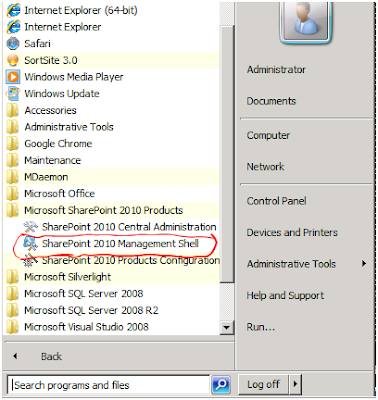
אחד הדברים החזקים בSharePoint 2010 – שאפשר לכתוב קוד .Net בלי לקמפל בעזרת PowerShell. הפעם הדגים איך לבנות רשימה ולהוסיף לשדה. נפתח את ה SharePoint 2010 Management Shell (ראו הסבר ב PowerShell בSharePoint2010 ) ניצור Assignment $MyAssignment = Start-SPAssignment נפתח את האתר המבוקש על פי URL $MyWeb = Get-SPWeb http://MySite.com -AssignmentCollection $MyAssignment stTemplates["Custom List"]) ניצור את הרשימה, ניתן את שמה, התיאור והתבנית. $MyWeb.Lists.Add("My List","This list created with powershell",$MyWeb.ListTemplates["Custom List"]) ניצור את השדה (במקרה זה Text) $MyList = $MyWeb.Lists["My List"] $MyList.Fields.Add("TextField","Text",$MyWeb.FieldTypeDefinitionCollecti on["Text"]) ולסיום נסגור את האתר ואת המשימה. $MyWeb.Dispose() Stop-SPAssignment $MyAssignment עכשיו אם נבדוק באתר, נראה את הרשימה עם השדה שהוספנו נחמד.. שבוע טוב, רועי

PowerShell בSharePoint2010

Image
בהמשך ל פוסט הקודם הפעם אסביר על PowerShell בSharePoint2010 בSharePoint2010 הוסיפו לנו tool עבור הPowerShell שנקרא SharePoint 2010 Management Shell. דוגמא בדוגמא הבא ארצה לקבל בקובץ אקסל את האתרים בשרת הSharePoint. בשביל זה אצטרך להשתמש בpipe שיעביר לקובץ csv שאקסל יודע לקרוא. כמו כל פניה בSharePoint צריך לפתוח את הWeb Application , לאחר מכן את הSite Collection וכו.. נרשום את הפקודה Get-SPSite Get-SPWeb Select url,title Export-Csv לאחר שרשמתי את הפקודה התבקשתי לרשום את הנתיב לשמירת הקובץ CSV. כל זה בשורה אחת ב PowerShell, ורק תחשבו כמה זמן זה חוסך זמן במקום בניית console application. דבר אחד רק רציתי להזכיר, כאשר פותחים SPSite וSPWeb חייבים להוריד אותם מהזיכרון בסוף – כך הקוד למעלה לא יעיל. כדי להפוך אותו ליעיל צריך לגדיר משתנה ($Site = Get-SPSite) ואז בסוף למחוק אותו מהזיכרון ($Site.Dispose). עזרה כמו בפוסט הקודם שהסברתי איך לפנות לעזרה בעזרת המתודה Get-Help. כדי לראות את הפרוצדורות של SharePoint בPowerShell יש להקליד את הפקודה הבאה: Get-command -noun sp* מכיוון שכל הפר...

Hello World PowerShell

Image
היי לכולם, שמי רועי קולבינגר, מהנדס תוכנה M.Sc. מפתח בטכנולוגיית SharePoint משנת 2007 בחברת KWizCom. הHello World שלי אדגים בPowerShell שפת ה Shell של .Net רקע PowerShell זו ממשק הסקריפטים של מיקרוסופט מבוססת .Net. אם עד היום כדי אם הינו רוצים לבנות script בשרת, הינו כותבים קובץ VB Script או קובץ batch שמכיל פקודות dos. היום אנחנו יכולים גם להשתמש ב PowerShell המבוסס על .Net המוכר לנו (המפתחים). כדי להפעיל את ה PowerShell יש לגשת ל Start Accessories Windows PowerShell Windows PowerShell בחלון ה Windows PowerShell (שדומה לחלון הCMD המוכר) לכתוב את הscript. אפשר כמובן להכין את הscript מראש בNotepad (עדיף Notepad ++) או ב PowerShell ISE (שבו אפשר לעשות debug – יורחב בהמשך...). כמה כללים בסיסים ב PowerShell. לא משנה איך כותבים את גודל האותיות באנגלית (Capital Letters or Small Letters). הערה רושמים כסולמית # (דוגמא: This is a comment#). הבנה פשוט ומוכר לחובבי פקודות הCMD: Cmdlet position0 position1 –ParameterName value –ParameterSecond value. עדין אפשר לכתוב שורות dos (כמו CD,DIR...